
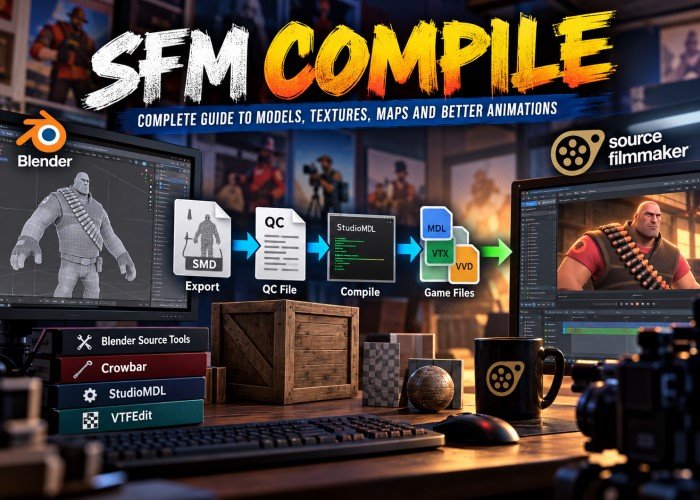
Source Filmmaker gives creators the power to build animated films using characters, props and settings from the Source engine. However, bringing a custom model into the software is not always simple. A character may look perfect in Blender but turn into an error symbol when opened in a scene. That is where SFM Compile becomes important. The process prepares custom assets so Source Filmmaker can read them correctly.
What Is SFM Compile and Why Does It Matter?
Model compilation converts 3D source files into a format supported by Valve’s original Source engine. A modelling programme stores shapes, materials and bones in its own way. Source Filmmaker needs a different set of files to display and animate those details. Compilation connects these two systems. It takes exported model data and instructions, then builds the finished model and its supporting files. A successful result can be placed inside Source Filmmaker and used in a scene.
There is an important difference between compiling a model, compiling a map and rendering a film. Models are prepared with StudioMDL. Maps are built with level-compilation tools. Rendering turns an animated scene into images or video.
Essential Tools for Source Filmmaker Compilation
Blender and Blender Source Tools
In Blender, you can edit shapes, arrange UV maps, add bones and prepare animation data before exporting. Blender Source Tools provides export options for Source-compatible SMD and DMX files. Check that the add-on supports your installed Blender version. An incompatible add-on can cause export trouble before compilation even begins.
StudioMDL and Crowbar
StudioMDL is Valve’s model compiler. It reads a QC instruction file and produces the model files needed by the engine. Crowbar is a community tool that provides a visual interface for StudioMDL. It is useful because you can select files, choose the game setup and read error messages in one place. Texture tools are also needed. Source materials generally use VTF image files and VMT material instructions. Converting a model does not automatically make its original Blender materials work in the engine.
Understanding the File Formats
Several file types work together during the process. SMD and DMX hold exported model or animation data. A QC file tells StudioMDL which meshes and sequences to use, what the model should be called and where its materials belong. The main output is an MDL file. Supporting VVD and VTX files store data needed to draw the model. A PHY file may also be produced when a collision model has been defined. Not every prop needs one. VTF files contain textures, while VMT files describe how those textures should be displayed. Missing supporting files may leave a model invisible, broken or covered in a chequered pattern.
How to Complete the SFM Compile Process
1: Prepare Your 3D Model
Start with a clean model in Blender. Check its size, direction and position. Remove unwanted geometry, inspect its surface and make sure each material has a clear name. Apply suitable transforms before export. For a character, inspect the skeleton and skin weights. These settings decide how the mesh moves with its bones. A simple prop is a good first project because it needs fewer moving parts.
2: Export the Correct Source Files
Use Blender Source Tools to export the model as SMD or DMX, depending on what your chosen setup supports. Export any required animation data too. Keep the files in a working folder with short, clear names. Check the result before moving on. If the model faces the wrong way or the bones are missing, fix the source project rather than hoping the compiler will correct it.
3: Create a QC Instruction File
The QC file is a plain-text guide for StudioMDL. It defines the finished model’s name, identifies the source mesh, points to the material folder and sets up at least one animation sequence. More complex projects can include collision shapes, body groups and facial controls.
Every name and folder path must match the files you prepared. A small spelling mistake is enough to stop the compiler from finding a mesh. You do not need a complicated script for a basic model; start with the essential settings and add extra features only when needed.
4: Compile with StudioMDL or Crowbar
Open Crowbar, select the QC file and choose the correct Source Filmmaker game configuration. Crowbar then runs StudioMDL using those settings. Pay attention to the output. A successful compile should generate the expected model files. If it fails, read the first useful error message, correct the cause and try again. Changing too many things at once makes errors harder to trace.
5: Install and Test the Model
Place the finished model files in the appropriate models folder, often within Source Filmmaker’s usermod game directory. Material files belong in a matching materials folder. Open a test scene and load the new model. Check its shape, textures, scale and bone controls. Move a few joints if it is a character. This final check matters because a completed compile does not always mean the model is ready for animation.
Materials, Bones and Facial Animation
A good mesh is only one part of a good asset. Materials control its colour, shine and surface detail. Source shaders work differently from Blender’s material nodes, so some effects must be recreated with suitable VMT settings. Animated characters need careful rigging. Poor bone weights can stretch clothing or bend an arm in the wrong direction. Facial movement may need flex controls and more advanced QC settings. Test one feature at a time instead of adding every control before the first successful compile.
Common SFM Compile Errors and Solutions
The Model Loads as an Error Symbol
Check that the MDL file and its matching VVD and VTX files are present. Confirm that the model path is correct and that the files were built for a compatible Source engine branch. A model from another game may need conversion before it works properly.
Pink and Black Textures
This usually means a material or texture cannot be found or loaded. Check the VMT and VTF names, material paths and texture references. Recompiling the mesh will not fix a missing texture by itself.
A Character Is Frozen in a T-Pose
A T-pose can be a normal resting pose, but it may also mean that an animation has not been applied or the rig is unsuitable. Check the skeleton, exported sequences and controls inside Source Filmmaker before changing the mesh.
StudioMDL Stops Before Finishing
How to Identify the Cause
Look for the first clear failure in the compile log. Common causes include a missing SMD file, an incorrect QC path or unsupported model data. Repair the original issue and run a fresh test.
How Map Compilation Differs from Model Compilation
Custom environments use another workflow. Maps are usually built in Hammer and saved as VMF source files. The Source map tools then produce a BSP file that the game engine can load. VBSP prepares the map structure, VVIS handles visibility data and VRAD calculates baked lighting. Poor geometry or incorrect map settings can cause errors at these stages. These tools do not replace StudioMDL, and a finished BSP is not a character or prop model.
Rendering a Finished Animation
After compiling and installing your assets, you can build a scene using cameras, lighting, sound and movement. Exporting the final film is called rendering. It is separate from preparing models or maps. Source Filmmaker can export still images and movies. Before a long render, make a short test to inspect the lighting, motion and frame size. Higher output resolutions may need suitable launch settings and can take longer to process.
Tips for Faster, Cleaner Results
Test a simple model before adding high-detail textures, extra bones or complex effects. Avoid unnecessary geometry and oversized textures where they bring little visual benefit. Use a compiler that matches the version of Source Filmmaker you are targeting. The newer Source 2 Filmmaker uses a different asset workflow, so its instructions should not be mixed with those for the original programme.
Frequently Asked Questions
Is SFM Compile Free?
Source Filmmaker is free to use through Steam, and the main model-compilation tools are available without a paid subscription. Check each third-party tool’s own terms before installing it.
Can I Import an FBX Model Directly?
Not as a normal finished Source model in the original Source Filmmaker. You generally need to prepare and export compatible data, then compile it for the engine.
Why Does My Model Have No Texture?
The material path may be wrong, or the required VMT and VTF files may be missing. Check both the file locations and the names used by the model.
Final Thoughts
SFM Compile is easier when you follow a clear order: prepare, export, compile, install and test. Understanding what each file and tool does saves time and prevents repeat mistakes. With steady practice, you can focus on building stronger characters, richer scenes and more polished, memorable animated films.
