
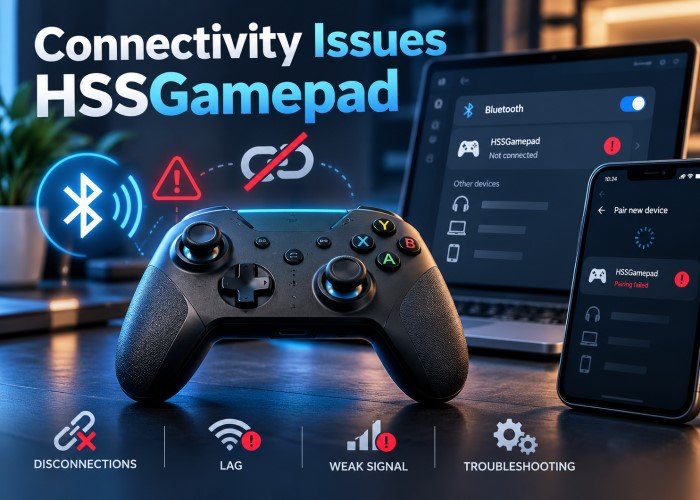
A game controller should respond the moment you press a button. When it fails to connect, drops out during play or reacts too slowly, a simple game becomes frustrating. Connectivity Issues HSSGamepad can involve Bluetooth pairing, faulty cables, unsuitable settings or problems with the connected device. Most connection faults can be narrowed down through checks, without replacing the controller immediately. One point matters before starting: the name HSSGamepad has no clearly verified manufacturer manual covering every version. Connection methods, button combinations and supported devices may differ. Check the model number on your controller before following any instructions that depend on particular hardware.
HSSGamepad Connectivity: Quick Facts Chart
| Feature | Practical details |
|---|---|
| Main symptoms | Failed pairing, sudden disconnection, delayed buttons |
| Possible connection methods | Bluetooth, wired USB or a wireless receiver, depending on model |
| First checks | Battery, connection mode and device compatibility |
| Common wireless causes | Interference, distance and old pairing records |
| Common wired causes | Charging-only cable, damaged port or driver fault |
| Useful test | Try the controller outside the game |
| Important precaution | Use only model-specific reset and update instructions |
Understanding Connectivity Issues HSSGamepad
Controllers send button and joystick commands to a phone, computer or other gaming system. A wireless model may use Bluetooth or a separate receiver, while a wired model transfers commands through USB. Each method has different failure points. If the device cannot detect your controller, the fault may involve pairing or power. If the controller connects but a game ignores it, the problem may concern compatibility or input settings instead.
Common Warning Signs
A controller that will not show up in Bluetooth settings has a different fault from one that disconnects after ten minutes. Other signs include frozen controls, irregular movement, missed button presses and a connection that works only when a cable is attached. A failure after an operating system update offers a useful clue. A fault affecting only one game points towards that game’s settings rather than the controller itself.
Start with Power and Basic Checks
Charge the Controller Properly
Low power can prevent a wireless controller from pairing or maintaining a stable connection. Charge it using the method recommended for your model. If it uses replaceable batteries, fit a suitable fresh set. Inspect the charging socket gently for visible dirt or damage. A charging light does not always prove that the battery is healthy. If the controller operates only while connected to power, the battery or charging circuit may require attention.
Restart Both Devices
Switch off the controller completely. Restart your computer, mobile device or console, then turn the controller back on. Reconnect using the correct procedure.
Confirm the Correct Connection Mode
Some controllers have separate operating modes for different systems. Using an unsuitable mode may allow pairing while preventing button input. Consult the instructions for your exact model before changing its mode. Do not assume a button combination from another controller will work.
Fix Bluetooth Pairing Problems
Remove the Old Connection
Open Bluetooth settings on the connected device. If an earlier controller entry remains, choose the option to forget or remove it. Switch Bluetooth off, then on again. Put the controller into pairing mode according to its own instructions and select it when detected. Simply powering on a controller does not always make it discoverable. A device previously connected to a phone may also try to reconnect there. Turn off Bluetooth on that phone while pairing with your computer.
Reduce Wireless Interference
Move the controller closer to the receiving device. Keep large metal objects and crowded wireless equipment away from the connection path. Nearby routers, wireless accessories and other Bluetooth products can compete for radio space. If the fault disappears when you move closer, investigate range and interference before changing drivers or buying accessories.
When Pairing Still Fails
Check whether the host device detects other Bluetooth accessories. If none connect, its Bluetooth service or adapter may be responsible. If other accessories work but the controller never becomes visible, confirm that the controller supports Bluetooth and that its pairing method is correct.
Solve Wired USB Connection Failures
A USB cable may deliver charging power without carrying data. This explains why some controllers light up but remain invisible to a computer. Try a known working data cable, provided the controller supports wired play. Connect directly to another USB port rather than through a hub. Check the plug for looseness and the socket for damage. Never force a connector into place. If the controller works through one port but not another, the original port deserves attention.
Check Wireless Receivers
Some controllers use a dedicated USB receiver rather than standard Bluetooth. Such receivers are not interchangeable without confirmed compatibility. Make sure yours is securely connected and follow its documented pairing procedure. Do not treat a missing receiver as a Bluetooth fault.
Fix Connectivity Issues HSSGamepad on Windows
Open Settings and check whether Bluetooth is enabled. Make sure Windows updates are installed, especially when connection failures began after a system change. Use the built-in Bluetooth troubleshooter where available. If disconnections persist, open Device Manager and inspect the Bluetooth adapter. Obtain appropriate driver updates through Windows Update or the computer manufacturer’s support channel. Avoid unknown driver packages, which may introduce further problems.
Test Button Responses
Press Windows and R, enter joy.cpl, and open the game controller test window. If the controller is recognised, inspect its button and stick responses. A working test indicates that Windows receives input, even if a particular game does not. Open the game’s controller settings and check whether controller support is enabled. Some PC games favour one input standard over another. Use only supported settings or official game configuration options.
Connect on Android, iPhone and iPad
On Android, open connected-device or Bluetooth settings, enable pairing and select the controller if it is supported. Menu names vary by phone maker. Test the controller in a game known to accept external gamepads. On an iPhone or iPad, open Settings, then Bluetooth, and pair a compatible controller. Not every third-party model works with every Apple device or game. Check controller support before assuming that an unsuccessful connection indicates a defect. A controller may connect correctly yet offer no response in a touch-only mobile game. That is a game compatibility limit, not necessarily a wireless failure.
Stop Random Disconnections and Input Lag
Disconnections during play may follow a weak battery, excessive distance, radio interference or an unstable Bluetooth driver. Change one condition at a time and test again. Input lag means a delay between pressing a control and seeing the action on screen. Wireless disruption can contribute, but display settings, game performance and heavy background tasks may also cause delays. Test another game before blaming the controller.
Compare Wired and Wireless Performance
Where supported, connect the controller with a data-capable USB cable. If delayed input disappears, focus on wireless reception or pairing. If the delay remains, examine the game, host device and controller settings as well.
Updates, Resets and Hardware Checks
Keep the connected device’s operating system updated. Install controller firmware only when you can confirm the manufacturer’s identity and obtain the correct file for your exact model. A wrong firmware package can make a working controller unusable. Resetting can help when saved connection settings are damaged, but reset methods vary. Follow the model’s manual rather than pressing unverified button combinations or inserting sharp objects into unknown holes.
If a controller fails with multiple compatible devices, different cables and fully charged power, hardware damage becomes more plausible. Loose sockets, damaged buttons and swollen batteries require particular care. Stop using any device that overheats, leaks or shows battery swelling.
Prevent Future Connection Problems
Store the controller in a dry place, protect USB connectors and charge it according to the maker’s guidance. Keep wireless receivers safely attached or stored when not in use. Avoid repeated switching between devices without properly disconnecting first.
After major software updates, test your controller before an important gaming session.
Frequently Asked Questions
Why does my HSSGamepad keep disconnecting?
Low battery power, interference, distance and Bluetooth driver problems are possible causes. Test each factor separately, starting with charging and a fresh pairing.
Why is my controller connected but not working?
The game may not support controllers, or the controller may be using an unsuitable input mode. Test its buttons outside the game to identify which part is failing.
Can I use any USB cable?
No. A charging-only cable cannot transfer controller commands. Use a suitable data cable if wired play is supported by your model.
Should I update the controller firmware?
Only when the correct model and trusted manufacturer’s update are confirmed. Do not install files intended for another controller.
Final Thoughts
Connectivity Issues HSSGamepad are easier to address when each symptom is checked in order. Start with power, confirm compatibility, then investigate Bluetooth pairing, USB connections and software settings. Keep model-specific procedures separate from general advice. Careful testing saves time, helps avoid risky changes and shows when professional repair or replacement is the sensible next step.
